Photo to Laser File — Dither, Trace & Upscale
Prep, upscale, remove backgrounds, vectorize, and export laser artwork as PNG, SVG, ZIP, or native LightBurn .lbrn2 files in one connected Image Lab.
How do you turn a photo into a laser engraving file?
Upload the photo to Image Lab, run photo prep to dither it for your material, then export a PNG for raster engraving or trace it to an SVG vector for line work. Photo prep, dithering and thresholding are free; Neural Upscale and Background Remover cost 1 credit each, and photo-to-vector conversion costs 8 credits. Exports include PNG, SVG, ZIP and native LightBurn .lbrn2 files.
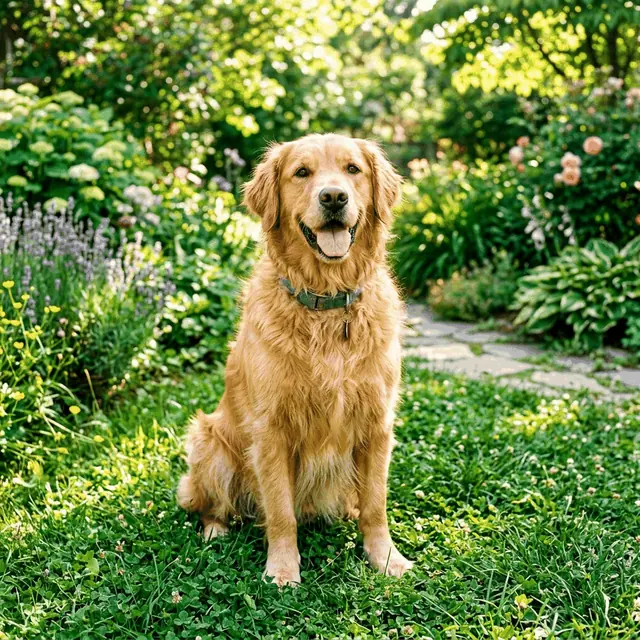
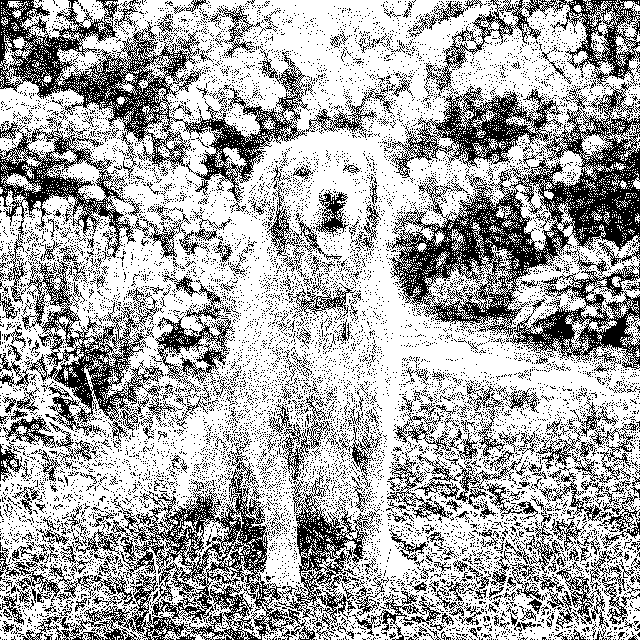
Image Lab at a glance: inputs, outputs, limits and cost
| Input | JPEG or PNG photos and artwork |
|---|---|
| What it does | Photo prep (dithering, halftone, thresholding), Neural Upscale, background removal, photo-to-vector tracing, and slicing oversized designs into bed-sized tiles |
| Output | PNG, SVG, ZIP and native LightBurn .lbrn2 |
| Cost | Photo prep, dithering and thresholding free; Neural Upscale and Background Remover 1 credit each; photo-to-vector 8 credits |
| Limits | Photos with soft gradients trace poorly to vectors, so raise contrast and simplify first. Dithering settings still need a test burn on the actual material. |
What does Image Lab do to a photo?
- Prep, upscale, remove backgrounds, vectorize, and slice images for CO2 and fiber laser engraving.
- High-performance tracing engine that converts raster JPEG/PNG into clean vector SVG.
- Built-in photo prepping filters (dithering, halftone, thresholding) optimized for slate and wood.
Customer quotes
Named Reticle Red customers, quoted from their own public posts with permission. They describe the platform as a whole, not one tool, and they are not ratings.
“I love this software!”
“This is the easiest I have seen.”
“Reticle Red is becoming one of my favorite software to use. It has a lot of tools that many others do not, and approaches things differently to create more consistent results. A++”
“Reticle Red definitely takes the guess work out of your design work with tutorials to walk through the process. I highly recommend it.”
Open Photo to Laser File — Free to Start See Real Results →
Related to Photo to Laser File
Frequently asked questions about Photo to Laser File
Which dithering algorithm is best for laser engraving photos?
Jarvis and Stucki hold detail best on wood and slate; Floyd-Steinberg is a good general default; Atkinson gives a lighter, higher-contrast result. Always test on the actual material — grain and colour change the outcome more than the algorithm does.
How do I convert a photo into a vector for cutting?
Use the AI Vector Artist tracing engine — it converts raster JPEG/PNG into clean vector SVG. Photographs with soft gradients trace poorly; increase contrast and simplify the image first for a usable cut path.
What does the image slicer do?
It splits an oversized design into tiled sections that each fit your machine bed, so you can engrave a piece larger than the working area and align the tiles.
Which Image Lab tools cost credits?
Photo prep, dithering, and thresholding are free. Neural Upscale and Background Remover cost 1 credit each, and photo-to-vector conversion costs 8 credits.
Privacy Policy| Terms of Service| Refund Policy| Contact and Support