Dither a Photo for Your Laser and Tile Big Art, Free
Watch the 2:58 Image Lab tutorial: Dither a Photo for Your Laser and Tile Big Art, Free with a step-by-step PDF guide and the tool one click away.
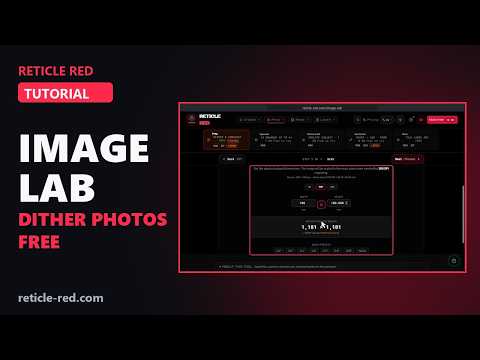
In this tutorial
- The five Image Lab tabs: Prep, Upscale, Remove BG, Vectorize and Slice (Prep and Slice are free)
- Load the Dog Portrait sample and pick a material preset (Wood: Jarvis-Judice-Ninke, 150 DPI), or PROCESS NOW in one click
- Adjust brightness, contrast, gamma and sharpness with a live preview
- Compare DPI side by side and choose 300
- Set the finished size in mm: 100 mm at 300 DPI = 1,181 px
- Pick from 15 dithering algorithms in four families; a round halftone with screen angle and dot size
- PROCESS FULL IMAGE, DOWNLOAD PNG (the DPI is stored, so it opens at 100 mm) and EXPORT .LBRN2
- LightBurn starter settings (20% power, 100 mm/s) and APPLY THESE SETTINGS TO MORE PHOTOS
- Slice for Tiling: columns, rows, overlap, registration marks inside the overlap, and DOWNLOAD ALL (.ZIP) with an assembly map and README
Chapters
- 0:00 Intro
- 0:14 Five tabs, one image
- 0:24 Upload, or try a sample
- 0:45 Adjust
- 0:57 DPI
- 1:12 Finished size
- 1:35 PROCESS FULL IMAGE
- 2:00 Starter settings
- 2:19 Slice for Tiling
- 2:36 SLICE IMAGE → DOWNLOAD ALL (.ZIP)
- 2:47 Wrap-up
What the Image Lab tutorial covers
- 0:14 — Five tabs, one image
- 0:24 — Upload, or try a sample
- 0:45 — Adjust
- 0:57 — DPI
- 1:12 — Finished size
- 1:35 — PROCESS FULL IMAGE
- 2:00 — Starter settings
- 2:19 — Slice for Tiling
- 2:36 — SLICE IMAGE → DOWNLOAD ALL (.ZIP)
Find the Right Laser Tool for Your Job See Real Results →
Privacy Policy| Terms of Service| Refund Policy| Contact and Support